 One Question
Switch from Day One
Bring your Day One years with you.
Every entry comes across with the day it was written, the time, the time zone and the place. In One Question your years sit on your timeline and your map, come back On This Day, and are read for the chapters of your life from your first day.

Free on iPhone and iPad. Importing is free.
1. Export from Day One
- In Day One on your iPhone or iPad, open Settings and tap Import/Export.
- Pick the journals you want to bring. Set a date range if you only want part of them.
- Choose JSON. It keeps the most: the time, time zone and place of every entry. You can leave media out, since photos don’t come across yet.
- When the export is ready, tap Save to Files.
On a Mac, choose File › Export in Day One, pick JSON, and save the .zip to iCloud Drive so your iPhone can reach it. These are Day One’s own steps, from its guide to exporting entries.
2. Bring it into One Question
- In One Question, tap the gear on Today, then Bring in another journal.
- Choose Day One, tap Choose the .zip, and pick the file you saved. Can’t find it? Look in Recents.
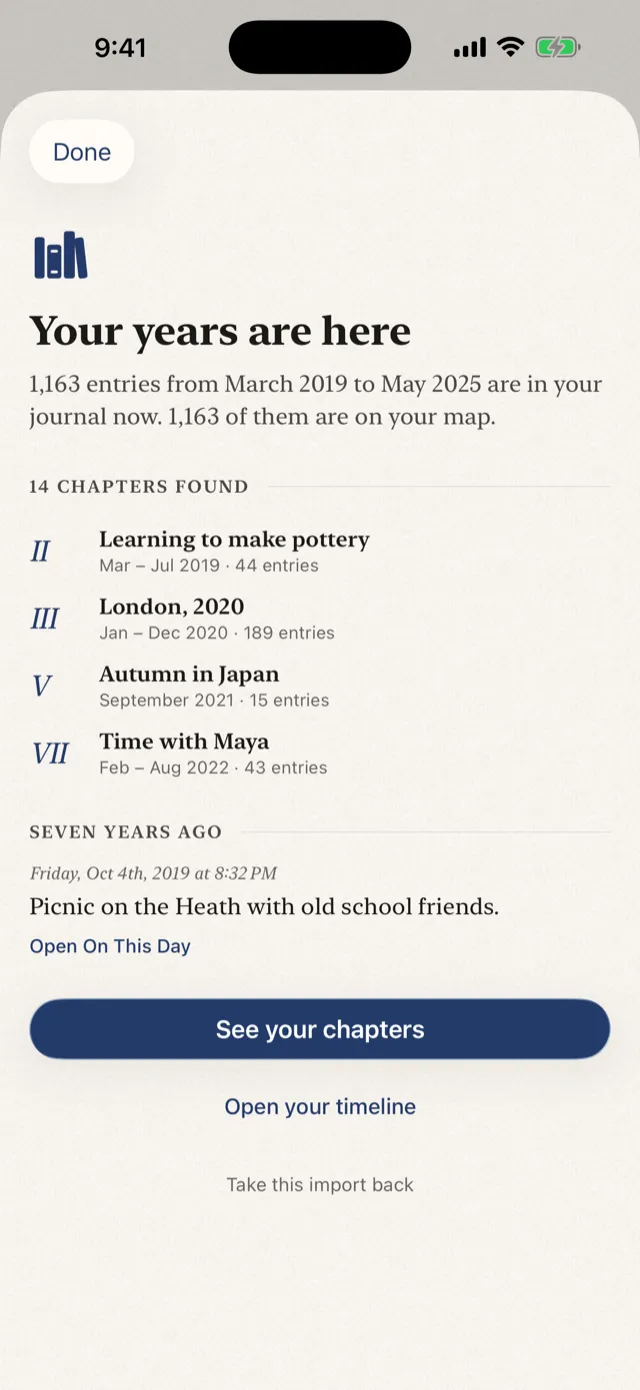
- Before anything is saved, One Question shows what it found: how many entries, from when to when, and how many have a place. If the export holds several journals, switch off any you’d rather leave behind.
- Tap Bring in. Then see your chapters, or open On This Day.
What comes across
- Every word of every entry. A heading on an entry’s first line becomes its title.
- The day, the time and the time zone it was written in. An all-day entry stays dated, not timed.
- The place: its coordinates, name, town and country. Entries land on your map, and the towns you lived in can become chapters.
- The rest of each entry: the journal it was in, its tags, the weather and whether you starred it. They’re kept with the entry, though One Question doesn’t show them yet.
What doesn’t, yet: photos, videos, audio and PDFs. One Question keeps a note of each one with its entry, but not the file. An entry with nothing written in it, only a photo, stays behind too.
Day One’s PDF and Plain Text exports work as well, but only JSON keeps where each entry was written.
What your years become
Imported entries arrive like the ones you write here. One Question reads them for the stretches your life fell into, a town, a season, a person, and each becomes a chapter, named and dated. On This Day sets today beside a week, a month and a year ago, Memories finds any entry by words, places or people, and the Journal Map shows everywhere you’ve written from.
From then on, there’s one question a day to answer, in a sentence or a page.
Good to know
- Your Day One journal stays as it is. Exporting makes a copy; nothing is removed.
- Nothing comes in twice. Bring in a newer JSON export later and only the new entries are added. An entry that’s already here stays as it came in, even if you’ve edited it in Day One since.
- You can take it back. Every import is listed in One Question’s Settings, under Your words. Remove one and only its entries go; what you wrote in One Question stays.
- Entries are sealed. One Question keeps every entry the way it was written, imported ones too. You can delete an entry, but not rewrite it.
- You can leave, too. In Settings, Export everything gives you every entry, imported ones included, as one plain text file that any computer can open.
- Entries dated after today are left out.
Private, start to finish
- Your export is read on your iPhone or iPad, and never uploaded to be read. There is no One Question server to send it to.
- Imported entries join your journal in your own iCloud account, like everything you write.
- Chapters are found on your device. With Apple Intelligence, they’re written there too.
- The app’s analytics count how many entries came in, and from which app. Never what they say.
- The .zip stays in Files until you delete it, so delete it once your entries are in if you don’t want a second copy lying around.
The privacy policy has the details.
What it costs
Importing is free, and so is writing. Your list of chapters, the map, On This Day and Memories cost nothing. One Question Pro opens what’s inside each chapter. Prices are in the FAQ.
Your years, read here.
Free on iPhone, iPad, Apple Watch and Apple Vision Pro.
Coming from Apple’s Journal app? Switch from Apple Journal